Why Is My TV Screen Black but the Sound Still Works?
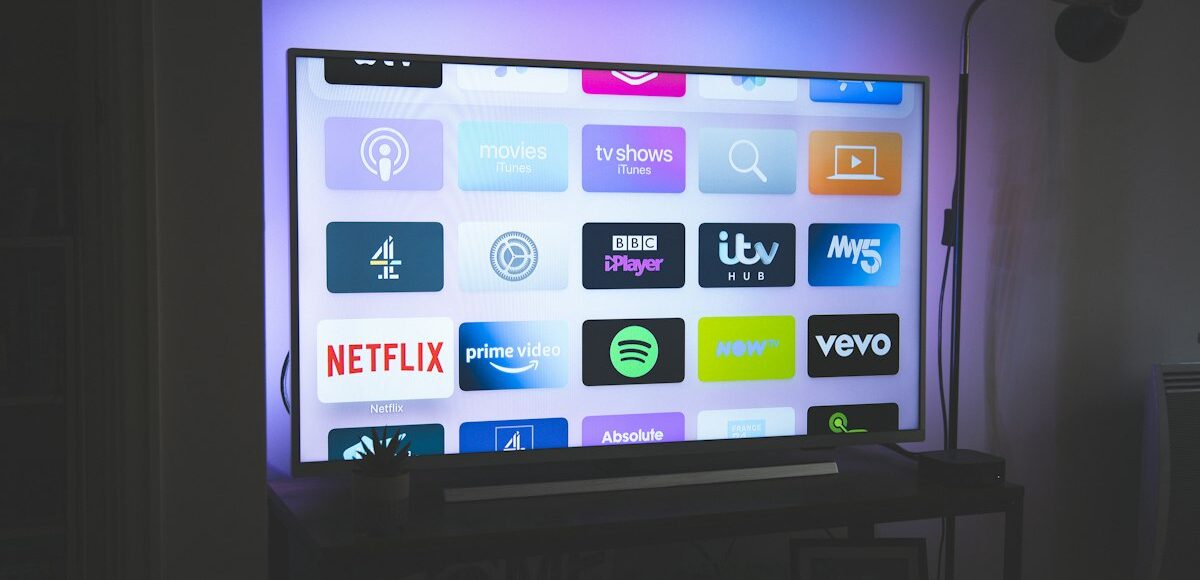
A black TV screen with working sound usually points to a backlight, input, cable, or picture-setting problem. Use these steps to find the cause.
If your TV screen is black but the sound still works, the problem is usually related to the picture path rather than the entire television. A wrong input, loose cable, disabled picture setting, failed backlight, or damaged display panel can all produce this symptom.
Start with the simple checks below before assuming the TV needs a repair. If the TV’s own menu or volume display also fails to appear, the problem is more likely inside the TV. If the menu appears normally, focus on the source device, input, or HDMI connection.
1. Check whether the TV menu appears
Press the TV remote’s Menu, Home, or Settings button. You can also press the volume button and watch for an on-screen volume indicator.
- Menu or volume graphics appear: The display is working, so the issue may be the selected input, HDMI cable, streaming device, or source signal.
- Nothing appears: The TV may have a picture-setting problem, software fault, backlight failure, power-board issue, or display-panel failure.
This quick test helps separate a source problem from a TV hardware problem. Do not rely only on whether you hear sound; audio may continue even when the TV is not receiving a usable video signal.
2. Make sure the TV is on the correct input
A TV can play audio from one source while you are looking at the wrong input, especially when several devices are connected. Press the remote’s Input, Source, or AV button and cycle through the available inputs.
Pause briefly on each input. Check the HDMI port number on the back or side of the TV and match it with the port selected on screen. If a cable box, game console, streaming stick, or receiver is connected, confirm that the device is powered on and awake.
3. Restart the TV and connected devices
A temporary software or HDMI-handshake problem can leave the audio active while video stops. Perform a complete power cycle:
- Turn off the TV and every connected source device.
- Unplug the TV and the source device from the wall outlet.
- Wait at least one minute.
- Plug the TV directly into a known-working outlet, if possible.
- Turn on the TV first, then turn on the source device.
- Select the correct input and test the picture.
Use the TV’s physical power button if the remote seems unresponsive. If the screen returns after a restart but repeatedly goes black later, check for software updates and note whether the failure occurs with one source or all sources.
4. Inspect the HDMI or video connection
A damaged, loose, or incompatible video connection may still allow sound to pass. Disconnect and reconnect the HDMI cable at both ends, making sure it is fully seated. If your setup uses an AV receiver, soundbar, switch, or splitter, temporarily connect the source directly to the TV to bypass that equipment.
If possible, test another HDMI port on the TV and another known-working cable. Also test a different source device on the same TV. These swaps identify the faulty part:
- If one device fails on every TV input but another device works, the original device or its output may be the problem.
- If every device fails on one HDMI port, that port may be damaged.
- If every device fails on every input, investigate the TV’s settings, software, or internal hardware.
5. Check picture settings and accessibility features
Accidentally changing a picture setting can make the screen look completely black. Open the TV’s settings menu if it is visible and check the following:
- Brightness, contrast, and backlight or panel-light level
- Energy-saving or eco mode
- Screen-off, picture-off, or audio-only mode
- Sleep timer and presence-sensing features
- Picture mode and accessibility settings
Look for an option such as Reset Picture and apply it if available. Avoid changing advanced calibration controls unless you know what they do. If the menu is visible but the program picture is not, a picture reset may restore normal output without affecting other TV functions.
6. Use the flashlight test carefully
On many LCD or LED TVs, a failed backlight can leave a faint image on the panel while the screen appears black. In a dark room, turn on the TV and shine a flashlight at an angle close to the screen. Look for a very dim menu, logo, or moving picture.
If you can barely see an image, the TV may have a backlight, power-delivery, or related internal fault. This test is not definitive, and it does not apply equally to every display technology. Do not press hard on the screen or open the TV to inspect internal parts.
7. Consider overheating or a damaged panel
A TV that works briefly and then loses its picture may be overheating or developing an internal component fault. Make sure vents are not blocked by a wall, cabinet, dust, or other equipment. Turn the TV off and let it cool before testing it again.
Physical damage, pressure on the panel, liquid exposure, electrical surges, and age-related component failure can also cause a black screen. Lines, cracks, bright spots, flickering before the failure, or a visible impact mark increase the likelihood of display hardware damage.
Common mistakes to avoid
- Do not repeatedly unplug and reconnect cables while devices are powered on if the connections are difficult to access.
- Do not assume the HDMI cable is the problem without testing another input or source.
- Do not press, tap, or bend the screen to bring the picture back.
- Do not open the TV unless you are qualified to work safely around stored electrical energy.
- Do not keep using a TV that smells burned, makes unusual noises, sparks, or shows signs of liquid damage. Disconnect it safely and seek service.
When does the TV need repair or replacement?
Professional service is appropriate when the TV has no visible menu after a power cycle, the flashlight test reveals a faint image, or all sources and inputs produce the same black screen. A repair technician can determine whether the likely fault is the backlight, main board, power board, or display panel.
Panel damage is often more difficult to justify repairing than a cable or settings issue, but the right choice depends on the TV’s age, size, condition, and the repair estimate. Check any applicable retailer, manufacturer, or protection-plan coverage before authorizing work. Never remove the rear cover while the TV is connected to power.
How to help prevent a black-screen problem
- Keep ventilation openings clear and avoid enclosing the TV in a tight, poorly ventilated cabinet.
- Use cables that fit securely and avoid sharply bending them behind the TV.
- Connect sensitive home-theater equipment to appropriate surge protection.
- Keep liquids away from the screen and connected electronics.
- Install TV and source-device software updates when practical.
- Label HDMI cables and ports so troubleshooting is faster when a device is moved.
FAQ
Why can I hear sound if the screen is black?
Audio and video use separate signal paths, so a TV or source device can continue playing sound after the picture signal, backlight, or display hardware fails.
Can a black screen be caused by the remote?
Yes. The remote may have activated a screen-off or audio-only function, selected another input, or failed to send commands. Try the TV’s physical controls and replace the remote batteries if needed.
What if the screen is black but I can see a faint picture?
A faint image commonly suggests that the TV is generating a picture but its backlight is not illuminating the panel. Have the TV assessed rather than opening it yourself.
The bottom line
When a TV has sound but no visible picture, first check the on-screen menu, input selection, HDMI connections, source devices, and picture settings. A full power cycle often clears a temporary signal problem. If menus never appear, a flashlight reveals a dim image, or every source fails, the cause may be an internal backlight, board, or panel fault. At that point, stop troubleshooting externally and get a qualified assessment.
 ✓
✓


