How to Troubleshoot a Home Network With Slow Ethernet Speeds
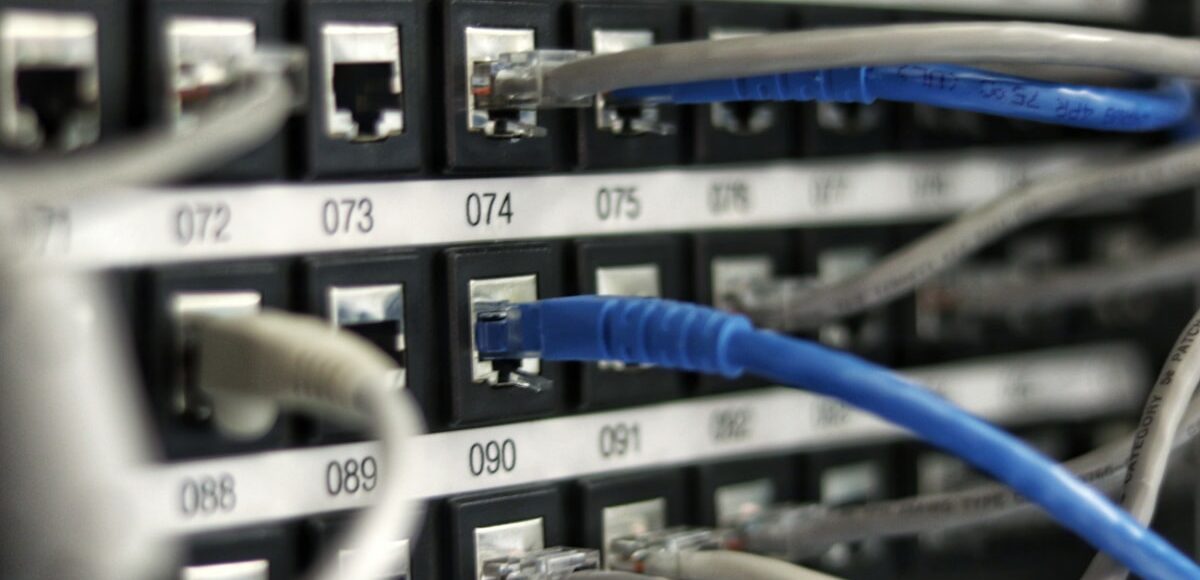
Slow Ethernet is usually caused by a bad link, outdated settings, or a bottlenecked device. Use this step-by-step guide to find and fix it at home.
Slow Ethernet is usually caused by a cable or port negotiating at the wrong speed, a congested or underperforming network device, or a problem farther upstream with your router or internet service. The quickest way to solve it is to identify whether the slowdown affects one wired device, every wired device, or only internet traffic.
Start with simple checks, then isolate one part of the network at a time. Avoid changing several settings at once: a methodical approach makes it much easier to tell what actually fixed the problem.
First, identify what “slow Ethernet” means
An Ethernet connection can feel slow for two different reasons. Your device may have a slow connection within your home network, or your local network may be fine while the internet connection is the limiting factor.
- Slow local network transfers: Copying files between computers, a network storage device, or a media server is sluggish. This points to a cable, Ethernet port, switch, router, or device issue.
- Slow internet on wired devices: Websites, downloads, and streaming are slow, but local transfers may be normal. This could be your home network, router settings, modem/ONT, or the connection from your internet provider.
- Only one device is slow: Focus first on that device’s cable, Ethernet adapter, wall jack, and settings.
- Every wired device is slow: Look at shared equipment, such as the router, switch, modem/ONT, or a common cable run.
Run the same internet speed test on a wired computer and, if possible, another device connected directly to the router. Compare the results with your usual service level rather than relying on a single number. Test at different times of day if the issue seems intermittent.
Check the Ethernet link speed before changing anything
Ethernet devices automatically negotiate a connection speed when they are plugged in. A gigabit-capable connection that falls back to 100 Mbps is a common reason a home network suddenly seems slow. It can happen because of a damaged cable, a loose connector, a weak wall jack termination, or a port that supports only a lower speed.
On Windows, open Settings, go to Network & internet, select Ethernet, and look for the link speed. Depending on the version of Windows, you may also find it through the adapter’s Status window. On a Mac, open System Settings, select Network, choose the Ethernet connection, and review the hardware or connection details.
A reported 100 Mbps link is not automatically a problem if your equipment or service plan is designed around that speed. But if you expect a faster wired connection and see 100 Mbps, treat that as an important clue. A 10 Mbps link usually indicates an even more basic cable, connector, or compatibility problem.
Troubleshoot slow Ethernet step by step
1. Restart the network in the right order
Temporary software or negotiation issues can clear with a full restart. Save work first, then power off the router and any separate modem, fiber gateway, switch, or mesh node involved in the wired path. Wait briefly, then restore power to the modem or fiber equipment first. Give it time to reconnect before powering on the router, followed by switches and computers.
This does not repair a bad cable, but it can restore a stuck connection after an outage, firmware update, or power interruption.
2. Swap the short Ethernet cable
Replace the cable between the slow device and the nearest network device with a known-good cable. Do not judge a cable only by its appearance. A bent latch, worn connector, internal break, or incomplete wiring can still allow a connection while limiting its negotiated speed or causing errors.
For a typical gigabit home network, use a properly made Cat5e, Cat6, or newer cable. Older Cat5 cable and poorly terminated cables may be limited to lower speeds. If your Ethernet runs through a wall, test with a temporary cable directly from the computer to the router or switch. If performance improves, the in-wall run, wall plate, patch cable, or termination needs attention.
3. Try another router or switch port
Move the same cable and device to a different LAN port. Then check the link speed again. If the problem disappears, the original port may be damaged, dirty, configured differently, or simply unreliable. A port’s indicator lights can offer clues, but their meanings vary by manufacturer, so check the device documentation before drawing conclusions.
If you use an Ethernet switch, temporarily bypass it by connecting the computer directly to the router. If the direct connection is fast, reconnect devices to the switch one at a time. That helps reveal whether the switch, its power supply, an uplink cable, or a particular connected device is creating the bottleneck.
4. Eliminate adapters and nonstandard network paths
USB Ethernet adapters, docking stations, powerline adapters, wall extenders, and mesh satellites can all affect wired performance. Connect a computer’s built-in Ethernet port directly to the router if you can. If that resolves the issue, add the removed component back to the setup one at a time.
Powerline networking deserves special caution. Its performance depends heavily on a home’s electrical wiring, circuit layout, and electrical noise. It can be useful where running cable is impractical, but it should not be assumed to perform like a direct Ethernet run.
5. Check the computer’s Ethernet settings and updates
Most home networks work best with Ethernet speed and duplex set to Auto Negotiation. Forcing a speed or duplex mode can create a mismatch with the router or switch, leading to poor performance, errors, or unstable connections. If you changed this setting while troubleshooting, return it to automatic unless your network documentation specifically says otherwise.
Also install operating system updates and the current network adapter driver supplied by the computer or adapter manufacturer. On Windows, Device Manager can show the Ethernet adapter and whether it reports a problem. If a USB dock is involved, check for its firmware or driver updates as well.
6. Look for traffic that is using the connection
A healthy Ethernet link can still seem slow when the network is busy. Check for cloud backups, game or operating-system downloads, security-camera uploads, large file transfers, or another household member using substantial bandwidth. Pause nonessential activity briefly and retest.
If only internet performance is slow while local transfers remain fast, sign in to your router’s administration page and look for traffic-monitoring or connected-device information, if available. A router that is overloaded, outdated, or configured with aggressive traffic controls may also limit throughput. Do not reset the router to factory settings unless you have its setup details and have exhausted simpler options.
Common mistakes that make troubleshooting harder
- Testing over Wi-Fi while diagnosing Ethernet. Wi-Fi adds a separate set of variables. Use a wired test device when possible.
- Replacing the router first. A cheap, damaged, or miswired cable is often easier to identify and fix.
- Assuming every LAN port has the same capability. Older equipment and some network devices may include ports with different speed limits.
- Forcing adapter speed settings without checking the other end. Auto negotiation is usually the safer default.
- Using one speed test as proof. Test more than once and compare a direct-to-router connection with the usual setup.
- Ignoring the upload side. Slow uploads can affect video calls, backups, camera access, and gaming even when downloads look acceptable.
Prevent slow Ethernet problems
Keep cables from being sharply bent, crushed under furniture, pinched in doors, or repeatedly pulled by their connectors. Label cables and switch ports in larger setups so a working path is easier to restore after rearranging equipment. Keep networking gear ventilated and use a reliable power source; repeated overheating or power interruptions can cause unpredictable behavior.
After changing routers, switches, or internet service, verify the link speed on one wired computer and run a baseline speed test. Saving that result gives you a useful comparison when a future slowdown appears.
When you may need a different solution
If a direct connection to the router is consistently slow on multiple devices, but link speeds look normal and local transfers are fine, contact your internet provider. Share the time of the tests, whether devices were connected directly to the router, and whether the issue affects both downloads and uploads. Those details can help distinguish a home-network issue from a service issue.
If an in-wall cable run is the only failing portion, a qualified low-voltage cabling technician can test and repair or replace it. Renters should check with a landlord or property manager before opening wall plates or altering installed wiring.
FAQ
Why is my Ethernet connection stuck at 100 Mbps?
The usual causes are a damaged or incorrectly wired cable, a problematic wall jack, a 100 Mbps port, or a device setting that is not using auto negotiation. Test a known-good cable directly to another router or switch port first.
Can a bad Ethernet cable still work?
Yes. It may establish a connection but negotiate at a lower speed, drop intermittently, or produce errors. Swapping the cable is one of the fastest meaningful tests.
Why is Ethernet slower than my Wi-Fi?
That often means the wired connection has fallen back to a lower link speed or is passing through a limiting adapter, switch, or wall connection. Compare both connections using the same device and test Ethernet directly at the router.
The practical next step
For most homes, the best troubleshooting sequence is simple: check the reported link speed, replace the short cable, try a different port, and test directly at the router. Those steps isolate the most common causes without disrupting the whole network. If multiple direct wired tests remain slow, shift your attention to the router, modem or fiber equipment, and ultimately your internet provider.
 ✓
✓


