How to Fix a Phone That Keeps Restarting by Itself
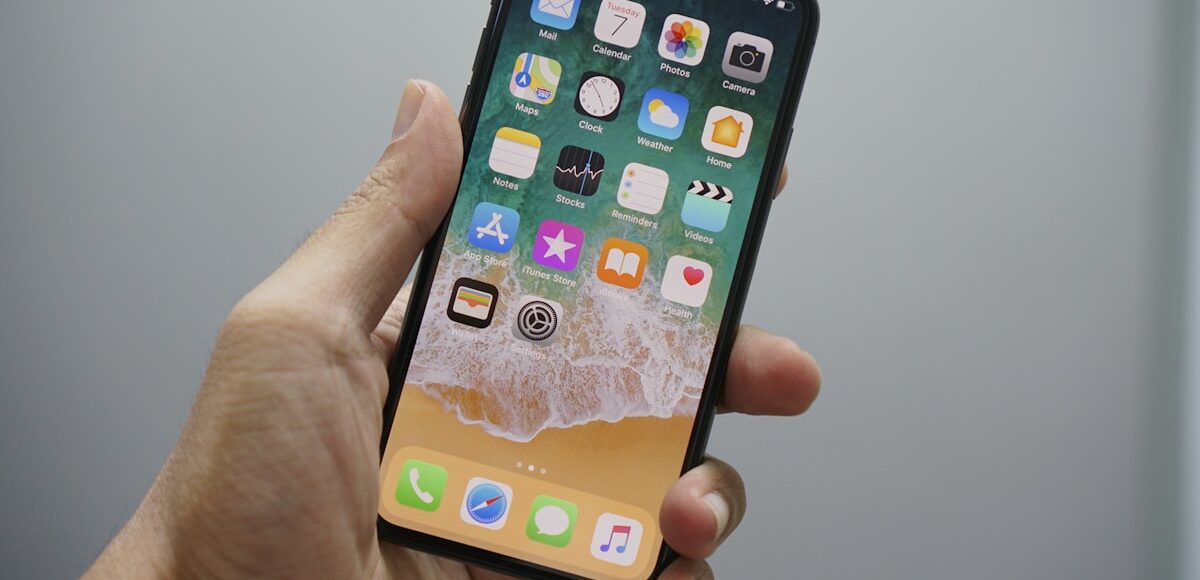
A phone that keeps restarting may have a software glitch, bad app, low storage, or hardware problem. Use these steps to find and fix the cause.
A phone that keeps restarting by itself is usually dealing with a software glitch, a problematic app, low storage, overheating, or a power-related hardware issue. Start by removing the case, checking the phone’s temperature, and installing any available system update. If the restarts continue, use the troubleshooting steps below to identify the cause before considering a factory reset or repair.
Start with these quick checks
Some restarting problems have a simple explanation. Before changing settings or deleting anything, run through these checks:
- Remove a tight or damaged case and make sure the phone is not unusually hot.
- Check whether the power button is stuck, pressed by the case, or difficult to click.
- Disconnect accessories such as a charger, USB cable, battery pack, or wired headphones.
- Make sure the phone has enough free storage for normal system operations.
- Write down when the restarts happen, such as during charging, after opening one app, or when the battery is low.
If the phone is hot, stop using it and let it cool at room temperature. Do not put it in a refrigerator or freezer. Continued use while it is overheating can make the problem worse and may create a safety concern, especially if the battery is swollen or the phone’s screen or back is separating.
Restart the phone normally and install updates
Perform a normal restart if the phone stays on long enough to use its menus. On an iPhone, use the power-off controls appropriate for the model. On an Android phone, press and hold the power button, then choose Restart or Power off. Wait several seconds before turning it back on.
Next, install pending operating-system and security updates. Updates can correct system bugs that cause repeated crashes or boot loops. Connect to a reliable Wi-Fi network and power the phone if the battery is low. Do not interrupt an update once it has started.
Check storage and remove recent problem apps
Nearly full storage can interfere with updates, temporary files, and normal app operation. Open the phone’s storage settings and look for a warning or a nearly full capacity bar. Delete or move large videos, downloads, duplicate photos, and offline media you no longer need. Emptying an app’s cache may help on some Android phones, but avoid clearing app data unless you understand that it may sign you out or remove locally stored information.
Think about what changed before the restarts began. A recently installed or updated app is a strong suspect, particularly if the phone restarts while using that app. Uninstall the recent app, restart the phone, and observe whether the behavior improves. If the phone cannot stay on long enough to remove it, try the device’s safe mode.
Use safe mode to test Android apps
Safe mode starts many Android phones with downloaded apps temporarily disabled. The exact method varies by manufacturer and Android version, but a common approach is to open the power menu, press and hold the Power off option, and confirm the prompt for safe mode. Some models require a different button combination during startup, so consult the phone maker’s support instructions if the first method does not work.
Use the phone normally for a while in safe mode. If the restarting stops, a downloaded app is likely involved. Restart normally, then remove recently installed apps one at a time, testing after each removal. Start with apps added or updated just before the problem appeared. If the phone still restarts in safe mode, the cause may be the operating system, battery, storage, or another hardware component rather than an ordinary downloaded app.
Check charging, battery, and temperature clues
A phone that restarts only while charging may have a problem with the charger, cable, outlet, charging port, or battery. Try a different known-good charging setup and a different wall outlet, without moving files or changing other settings at the same time. Inspect the port with a light for lint or debris, but do not insert metal objects or force anything into it.
Restarts that happen when the battery percentage is low can point to an aging or failing battery, although software can produce similar symptoms. Look in the battery settings for built-in battery health information or unusual usage warnings. A battery that is swollen, leaking, producing an unusual odor, or pushing apart the phone requires prompt professional attention. Stop charging or using it and keep it away from heat and flammable materials.
Try recovery tools only after protecting your data
If the phone stays on long enough, back up photos, contacts, messages, and other important data before using advanced recovery options. Confirm that the backup completed rather than assuming it did. Also make sure you know the phone’s account password; anti-theft protections may require it after a reset.
For an Android phone, the recovery menu may offer options such as clearing a system cache or repairing apps, depending on the model. For an iPhone, connecting to a computer may allow an update or recovery process through the device-management software. Follow the manufacturer’s instructions for the exact model. Avoid selecting an option labeled erase, wipe, or factory reset until your data is backed up and you accept that local data may be removed.
Factory reset: a last software step
A factory reset removes personal data and returns the phone to its initial software state. It can resolve persistent software corruption, but it will not fix a failing battery, damaged charging port, liquid damage, or another physical defect. Use it only after backing up your information, confirming account credentials, and trying less destructive steps.
After the reset, test the phone before reinstalling every app. If it restarts while the phone is still set up as new, hardware or deeper firmware trouble becomes more likely. If it works normally until a particular app or backup is restored, add content gradually so the source is easier to identify.
When the phone needs repair
Contact the phone maker, your carrier, or a reputable repair provider when the device keeps restarting after updates, safe mode testing, and a reset—or when it cannot remain on long enough to troubleshoot. Repair is especially appropriate after a drop, liquid exposure, a swollen battery, a loose screen, unusual heat, or repeated shutdowns at the same battery level.
Do not keep charging a phone with visible battery damage, and do not open the device yourself unless you have the appropriate experience and tools. Ask about data preservation before authorizing service, since some repairs or replacement procedures can erase the phone.
How to prevent random restarts
- Keep the operating system and apps updated through their normal settings.
- Leave some storage space available instead of filling the phone completely.
- Use undamaged charging accessories and keep the charging port dry and clear.
- Avoid prolonged heat, direct sun, and charging under blankets or other insulating materials.
- Review newly installed apps when a problem begins and remove ones you do not trust or need.
- Maintain regular backups so a boot loop does not become a data-loss emergency.
FAQ
Why does my phone restart every few minutes?
Common causes include a faulty app, an incomplete update, low storage, overheating, battery trouble, or damage. Safe mode and observing whether it happens during charging can help narrow the cause.
Can a bad charger make a phone restart?
Yes. A damaged cable, charger, outlet, or charging port can interrupt power or create unstable charging. Test a different known-good setup and stop using accessories that are frayed, hot, or damaged.
Will a factory reset stop the restarting?
It may fix certain software problems, but it cannot repair physical damage or a failing battery. Back up your data first and treat a reset as a last software troubleshooting step.
The bottom line
Begin with cooling the phone, removing accessories, checking the power button, updating the system, and freeing storage. Then test recent apps—using Android safe mode when available—and compare the phone’s behavior while charging and on battery. Back up your data before recovery tools or a factory reset. Persistent restarts, physical damage, abnormal heat, or battery swelling call for professional service rather than more experimentation.
 ✓


