How to Troubleshoot a Phone That Will Not Charge Wirelessly
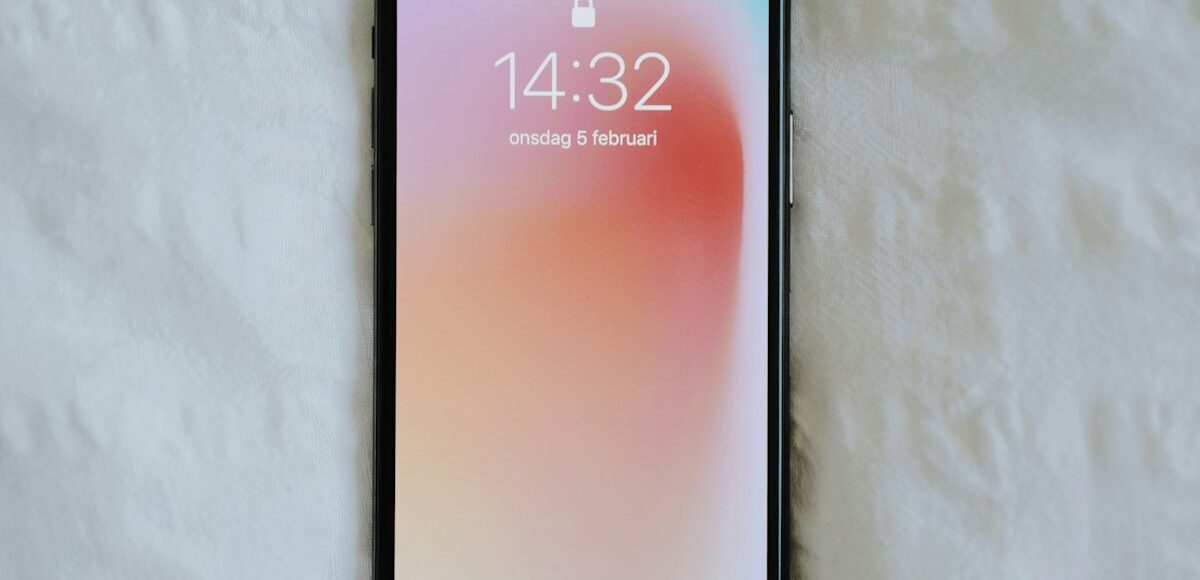
Your phone may stop charging wirelessly because of alignment, a case, heat, power, or compatibility. Follow these steps to find and fix the cause.
As an Amazon Associate I earn from qualifying purchases.
A phone that will not charge wirelessly usually has a simple cause: the phone is misaligned, the case is interfering, the charging pad is not receiving enough power, or the phone and charger are not compatible. Remove the case, reposition the phone carefully, and confirm that the charging pad has power before moving on to more involved steps.
Start with the basic wireless charging checks
Wireless charging depends on close alignment between coils in the phone and the charging pad. Even a small shift can prevent charging or cause charging to start and stop.
- Place the phone in the center of the charging surface, screen facing up unless the charger’s instructions say otherwise.
- Wait several seconds for the charging icon, vibration, or other charging indicator to appear.
- Try a different position if the phone has a small or off-center charging coil.
- Remove anything sitting between the phone and pad, including cards, magnetic accessories, pop grips, wallets, and metal plates.
- Check that the pad’s indicator light is on, if it has one.
Remove the phone case and accessories
A thick, rugged, wallet-style, or magnetic case can block or weaken the charging connection. Some cases also contain metal components that interfere with the charger or trigger its foreign-object protection.
Take the case completely off the phone and remove magnetic rings, card holders, adhesive mounts, and any attached plate. Test the bare phone on the pad. If it charges without the case, the case is the likely cause. A thinner case designed to support the phone’s wireless charging standard may work, but compatibility still depends on the specific phone and charger.
Check the charger’s power connection
A charging pad can look normal while receiving little or no power. Check both ends of the charging cable, then reconnect the power adapter to a known-working wall outlet. If the pad uses a separate cable and adapter, inspect each connection for looseness or damage.
- Try another wall outlet.
- Reconnect the cable firmly at the pad and power adapter.
- Use the cable and adapter intended for the pad, if available.
- Test the outlet with another household device if you are unsure that it works.
- Look for fraying, bent connectors, scorch marks, or unusual heat. Stop using visibly damaged charging equipment.
Some older or low-power adapters may not provide enough power for a particular charging pad. The pad’s documentation should identify the required input. Do not assume that any USB power source will perform the same way.
Clean and inspect the charging surfaces
Dust, grit, and residue can keep the phone from sitting flat. Turn off or unplug the charger, then wipe the phone’s back and the charging surface with a soft, dry cloth. Do not pour or spray cleaner onto the pad, and do not push objects into openings.
Check for a cracked charging pad, a swollen phone, a damaged back panel, or debris around the phone’s case. A damaged battery or phone should be evaluated by the manufacturer or a qualified repair provider rather than repeatedly placed on a charger.
Restart the phone and check for software problems
A temporary software error can prevent the phone from recognizing a wireless charger. Restart the phone, wait for it to finish booting, and try the charging pad again. If the phone recently installed an update or began having problems after one, check for any additional system update offered in its settings.
Close apps that are using unusually high power and let the phone cool before testing again. Wireless charging may pause or slow when the phone is hot. Avoid testing in direct sunlight, on top of heat-producing electronics, or under heavy bedding.
Confirm phone and charger compatibility
Not every phone supports wireless charging, and compatible phones may support different wireless charging standards or features. Confirm that the phone model supports the standard used by the pad. A charger intended for one accessory system may not work with a phone that uses another system.
Compatibility can also be affected by alignment requirements, magnetic attachment features, or the charger’s power profile. Check the phone and charger documentation instead of relying only on the shape of the charging pad or the presence of a charging symbol.
Test the phone and pad separately
Testing another compatible device can help identify which component is failing. If a second compatible phone charges on the pad, the original phone, case, or software is more likely to be responsible. If neither phone charges, focus on the pad, cable, adapter, and outlet.
You can also test the phone with a known-working wireless charger, if one is available. Use only equipment that is compatible with the phone, and stop if the phone or charger becomes unusually hot, makes a strange noise, smells unusual, or shows signs of damage.
When wired charging is the better next step
Use a compatible wired charger temporarily if you need power while troubleshooting. Wired charging does not prove that the wireless system is defective, but it can help separate a wireless-charging problem from a broader battery or power problem.
If the phone will not charge by cable either, loses power unusually quickly, shuts down unexpectedly, or becomes hot, contact the phone manufacturer or a qualified repair service. Seek help promptly for a swollen battery, cracked back, liquid exposure, burning smell, or other physical damage. Do not open a phone or battery unless you are equipped and qualified to do so.
Mistakes to avoid while troubleshooting
- Do not place credit cards, access cards, or other magnetic-stripe cards between the phone and charger.
- Do not use a wet phone or wet charging pad.
- Do not cover a hot phone with clothing, blankets, or other materials while it charges.
- Do not continue using a cable, adapter, or pad that is cracked, frayed, scorched, or excessively hot.
- Do not scrape the phone or pad with metal tools.
- Do not repeatedly force the phone into a position that requires pressure on the charging surface.
How to prevent wireless charging problems
Keep the charging surface clean and place it on a stable, ventilated surface. Use a case that leaves the charging area unobstructed, and periodically inspect the cable and adapter. Keeping the phone’s software current may also resolve compatibility or power-management issues, although an update is not guaranteed to fix a hardware problem.
Frequently asked questions
Why does my phone charge wirelessly only when the case is off?
The case may be too thick, contain metal, or include a magnetic accessory that interferes with alignment. Test the phone without the case, then check whether the case is designed for wireless charging.
Why does wireless charging start and stop?
Common causes include poor alignment, movement, heat, a weak power connection, or foreign-object detection. Re-center the phone, remove accessories, improve ventilation, and check the pad’s power connections.
Can I leave my phone on a wireless charger overnight?
Follow the phone and charger manufacturers’ guidance. Keep the setup on a hard, ventilated surface and avoid covering the phone. If it becomes unusually hot or shows damage, disconnect it and seek advice.
The bottom line
Begin with alignment, case removal, a clean surface, and the pad’s power connections. Then restart the phone, check compatibility, and test the phone and charger separately. If wired charging also fails or there are signs of heat, swelling, liquid exposure, or physical damage, stop troubleshooting at home and contact the manufacturer or a qualified repair provider.
 ✓


