Why Does My Computer Keep Disconnecting From External Drives?
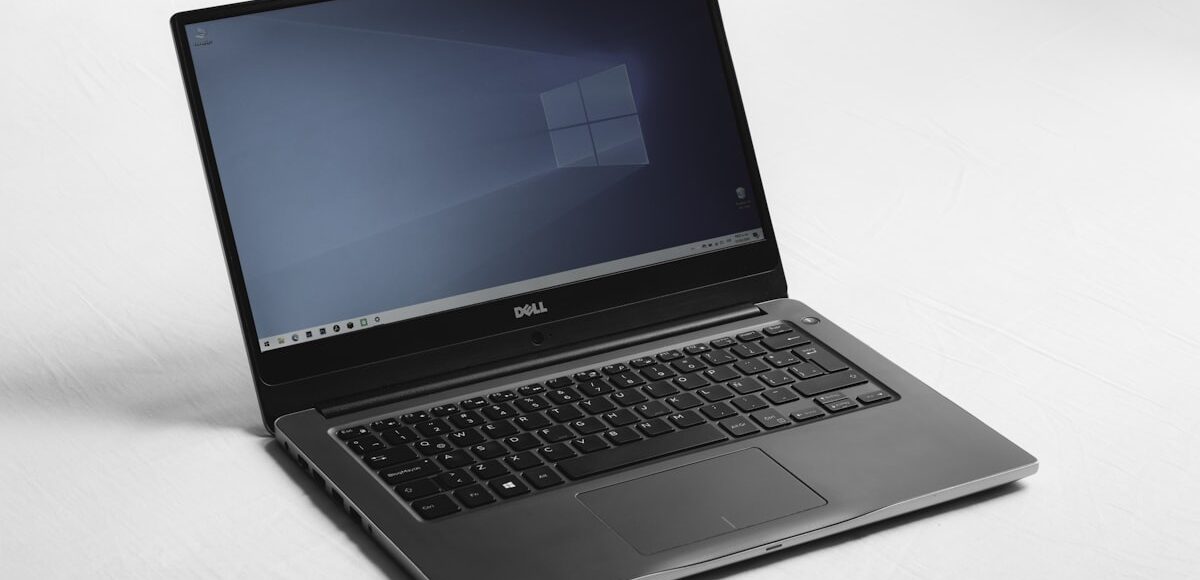
External drives usually disconnect because of loose connections, USB power limits, sleep settings, failing cables, or drive errors. Use these steps to fix it.
As an Amazon Associate I earn from qualifying purchases.
Your computer keeps disconnecting from an external drive because the USB connection may be unstable, the drive may not receive enough power, or Windows or macOS may be putting the connection to sleep. A damaged cable, overloaded USB hub, overheating enclosure, outdated drivers, or a drive beginning to fail can cause the same symptom.
Start by protecting your files: stop copying data if the drive repeatedly disappears, and safely eject it whenever the computer still recognizes it. Then work through the connection, power, software, and drive-health checks below.
Common reasons an external drive disconnects
Intermittent disconnections are usually caused by one of a few conditions:
- Loose or damaged hardware: A worn USB plug, bent connector, damaged cable, or loose port can briefly break the connection.
- Insufficient power: Portable hard disk drives and some other external devices may draw more power than a computer port or unpowered hub can reliably provide.
- USB power management: Windows may turn off USB devices to save energy. A computer can also suspend ports during sleep or other power-state changes.
- Problematic hubs or adapters: A hub, dock, USB-C adapter, or extension can add another point of failure.
- Overheating: Heat can make an enclosure or drive unstable, especially during long transfers.
- File-system or drive problems: Corruption, bad sectors, or an aging drive can cause errors, freezes, and sudden disconnects.
- Driver, firmware, or operating-system issues: A software problem can affect one drive, one port, or several USB devices.
First, determine whether the problem is the drive or the computer
Testing one variable at a time prevents guesswork. Connect the external drive directly to a different USB port on the same computer. Avoid a hub, dock, extension cable, or adapter for this test. If the drive uses a separate power adapter, confirm that it is connected securely.
Next, try a known-good cable that matches the drive’s connector and data requirements. A cable can provide enough power for the drive to appear briefly while still failing during sustained use. Do not force a connector or use a cable that is visibly damaged.
If possible, test the drive on another computer. A drive that disconnects on multiple computers with different cables is more likely to have a drive, enclosure, or power problem. If only one computer has trouble, focus on that computer’s port, settings, drivers, or operating system.
Work through these fixes in order
1. Reseat the connection and remove extra hardware
Safely eject the drive if it is still visible, unplug it, and reconnect it firmly. Plug it directly into the computer rather than into a monitor, keyboard, hub, or dock. Try another port, preferably one on the computer itself. Desktop users should test ports on the rear of the computer as well as front-panel ports.
For a desktop external drive with its own power brick, reseat both the USB connection and the power connection. If the drive has a separate power switch, turn it off before disconnecting and back on after reconnecting.
2. Replace the cable and test a different port
Use a short, undamaged cable designed for the drive’s connection. USB-C cables are not all identical, so a cable that charges a device may not support the data connection your drive needs. If the drive disconnects when the cable is moved slightly, stop using that cable or port.
3. Give the drive enough power
A portable drive connected through a bus-powered hub may disconnect when it starts a large transfer or when other USB devices are active. Temporarily unplug other USB devices and connect the drive directly. For a setup that needs several high-power USB devices, a powered hub may be more appropriate than an unpowered hub.
Do not substitute an unknown power adapter for the one intended for a desktop drive. Incorrect voltage, current, or connector polarity can damage hardware. If the drive’s power adapter is missing or suspect, consult the drive or enclosure manufacturer’s documentation.
4. Disable USB power saving on Windows
Windows can suspend USB devices to reduce power use. The exact labels vary by Windows version, but the following settings are common places to check:
- Open Control Panel, choose Power Options, and select Change plan settings.
- Choose Change advanced power settings.
- Expand USB settings, then USB selective suspend setting.
- Set it to Disabled for the current power plan and apply the change.
You can also open Device Manager, expand Universal Serial Bus controllers, and inspect USB Root Hub or Generic USB Hub entries. Under a device’s Power Management tab, Windows may offer an option to turn off the device to save power. Changing this can help, but it increases power use and may not be available on every computer.
5. Check macOS power and sleep behavior
On a Mac, open System Settings and review Energy or Battery settings. Options related to putting disks to sleep, power saving, or automatic sleep can interrupt access during long periods of inactivity. The names and available settings differ by Mac model and macOS version.
As a test, keep the Mac awake during a long file transfer and connect the drive directly. If the disconnections stop, sleep or power management is a likely contributor. Re-enable power-saving features when testing is complete if you prefer the lower energy use.
6. Check the drive for errors only after protecting important files
If the drive stays connected long enough, copy important files to another location before running repair tools. Repeated disconnects during a repair can make file-system damage worse or leave a repair incomplete.
Windows includes error-checking options in File Explorer: right-click the drive, choose Properties, open Tools, and use the error-checking option. macOS includes Disk Utility, where First Aid can check supported volumes. Follow the operating system’s instructions and avoid erasing or reformatting the drive unless you have a verified backup.
Mistakes to avoid
- Do not repeatedly unplug a drive while it is being written to.
- Do not format the drive just because the computer suggests it, especially if it contains needed files.
- Do not assume a drive is safe because it appears for a few minutes; copy critical data first.
- Do not stack a drive in a hot, enclosed space or cover its ventilation openings.
- Do not keep using a cable that disconnects when touched.
When the drive may need replacement or professional recovery
A clicking or grinding hard disk, a drive that vanishes across multiple computers, a burning smell, or rapidly worsening behavior is a warning to stop troubleshooting and protect the data. Unusual sounds or physical damage can indicate a mechanical or electrical failure. Further attempts may reduce the chance of recovering files.
If the files are irreplaceable and there is no backup, consider a reputable data-recovery service before opening the enclosure or running repeated repair commands. If the data is backed up and the drive fails the cable, port, power, and second-computer tests, replacing the drive is generally safer than relying on it for important storage.
How to prevent future disconnects
- Use a direct connection for important transfers and avoid unnecessary hubs or extensions.
- Keep cables supported so the connector is not pulled sideways.
- Leave ventilation around the enclosure and avoid placing it on heat-producing equipment.
- Safely eject the drive before unplugging it.
- Keep at least one additional backup of files that cannot be replaced.
- Install operating-system updates and device-driver updates from trusted sources, particularly after troubleshooting a computer-wide USB problem.
FAQ
Why does my external drive disconnect during large file transfers?
Large transfers expose weak cables, inadequate USB power, overheating, and drive errors. Test a different cable and direct port first, then check temperature and the drive for errors after backing up important files.
Can a bad USB port make the drive disappear?
Yes. Dust, physical wear, or an internal connection problem can interrupt data or power. If other ports work reliably with the same cable and drive, avoid the suspect port and have the computer inspected if it is needed.
Is it safe to keep reconnecting an unstable drive?
Repeated reconnects can interrupt writes and increase file-system damage. Stop and secure a backup as soon as the drive remains available long enough to copy the important files.
The bottom line
Begin with the simplest causes: replace the cable, change the USB port, remove hubs and adapters, and confirm adequate power. Then review USB sleep settings and check for drive errors only after protecting your data. If the drive disconnects on multiple computers or shows physical warning signs, treat it as a possible failure rather than a minor setting problem.
 ✓


