How to Fix a Laptop Touchpad That Stops Responding
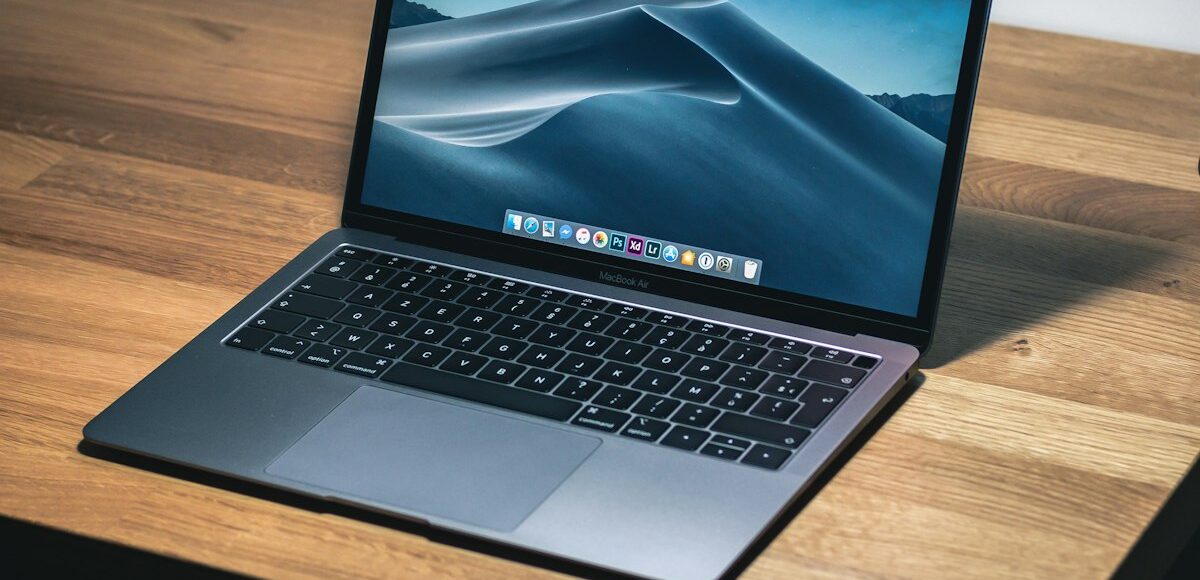
Get a frozen or unresponsive laptop touchpad working again with practical checks for Windows, Mac, and Chromebook computers.
If your laptop touchpad stops responding, start with the simple fixes: restart the computer, make sure the touchpad was not disabled by a keyboard shortcut or settings change, and disconnect external mice or USB devices. If that does not help, the usual next steps are updating or reinstalling the touchpad driver on Windows, checking for software conflicts, or arranging service if the touchpad is physically damaged.
A touchpad can fail suddenly after an update, a spill, a drop, or an accidental key press. It can also seem broken when an external mouse setting turns it off. Work through the checks below in order, moving to the more involved steps only if the earlier ones do not solve the problem.
Start with these quick touchpad checks
Use a USB or Bluetooth mouse if you have one. It makes troubleshooting much easier, but it is not required. Most Windows, Mac, and Chromebook controls can also be reached with the keyboard using Tab, arrow keys, Enter, and Escape.
- Restart the laptop. A normal restart can clear a temporary hardware or software hang. Choose Restart rather than simply closing and reopening the lid.
- Clean and dry the touchpad. Wipe it gently with a soft, lint-free cloth. Moisture, lotion, food residue, and a wet finger can interfere with some touchpad surfaces.
- Disconnect accessories. Unplug USB mice, docking stations, keyboards, game controllers, and other peripherals. Then restart. Some systems change touchpad behavior when a pointing device is connected.
- Remove gloves or finger coverings. Capacitive touchpads generally need direct contact with a fingertip.
- Check the battery area. If the touchpad, keyboard deck, or bottom case is bulging or separating, stop using and charging the laptop. A swollen battery can press against the touchpad and needs prompt professional attention.
Make sure the touchpad was not turned off
Many laptops have a keyboard shortcut that enables or disables the touchpad. Look across the F1 through F12 keys for an icon resembling a small touchpad, sometimes with a slash through it. On many models, you hold Fn and press that key. The exact key varies by manufacturer.
Some older laptops also have a small touchpad button or a marked corner of the pad that toggles it on and off. Press the button once, or double-tap the marked corner if your laptop has one. Avoid repeatedly pressing keys at random; that can enable airplane mode, disable other functions, or make it harder to identify what changed.
Fix an unresponsive touchpad in Windows
Windows settings and drivers are common reasons a touchpad stops working, especially after a system update or after connecting a mouse.
1. Turn the touchpad back on in Settings
Open Settings, then go to Bluetooth & devices and select Touchpad. Confirm that the Touchpad switch is on. On some Windows versions, the path may be Settings > Devices > Touchpad.
Also look for an option such as Leave touchpad on when a mouse is connected. Turn it on if you want the built-in pad to keep working alongside an external mouse.
2. Check Device Manager
Right-click the Start button and choose Device Manager. Expand Mice and other pointing devices and, if present, Human Interface Devices. The touchpad may be listed by its manufacturer, as an HID-compliant touch pad, or as a Precision Touchpad device.
- If the device has a downward-arrow icon, right-click it and choose Enable device.
- If it has a warning symbol, right-click and select Update driver, then choose the automatic search option.
- If an update does not help, right-click the touchpad entry, choose Uninstall device, and restart the laptop. Windows may reinstall the driver during startup.
If Windows does not restore the correct driver, download the touchpad, chipset, or serial I/O driver only from your laptop maker’s official support page. Match the download to the exact model and Windows version. Generic driver-download websites are best avoided because they can provide outdated or unwanted software.
3. Roll back a recent driver or Windows update
If the problem began immediately after an update, open the touchpad device’s Properties in Device Manager and check the Driver tab for Roll Back Driver. That option is available only when Windows retained an earlier driver.
You can also review recent Windows updates in Settings. Do not remove updates casually, particularly security updates. Roll back only when the timing strongly points to an update and the touchpad works again afterward.
Fix a MacBook trackpad that is not working
On a MacBook, first restart the Mac and disconnect any external mouse or hub. Then open Apple menu > System Settings > Trackpad and review the available trackpad controls. If you use an external mouse, look in accessibility or pointer-control settings for a setting that ignores the built-in trackpad when a mouse is present.
If the pointer moves but clicking does not work, try pressing down on the lower portion of the trackpad and check whether tap-to-click is enabled in Trackpad settings. A trackpad that will not physically click, feels unusually stiff, or sits raised above the surrounding case may indicate a hardware issue rather than a preference setting.
Install available macOS updates after backing up important files. If the issue continues, try starting in Safe Mode to see whether a login item or third-party software may be involved. Apple’s Safe Mode steps differ between Apple silicon and Intel-based Macs, so use Apple’s current instructions for your model.
Fix a Chromebook touchpad
Restart the Chromebook first. Then open the clock area, select Settings, and look under Device for Touchpad options. Confirm that touchpad features have not been disabled or changed in a way that makes the pad seem unresponsive.
Install ChromeOS updates through Settings > About ChromeOS. If the touchpad still fails, test in Guest mode if available. A touchpad that works in Guest mode but not in your account can point to an extension or account-specific setting. Remove recently added extensions and test again.
Rule out a software conflict
Touchpad trouble that began after installing an app, utility, antivirus program, keyboard remapper, remote-access tool, or device-management software may be caused by a conflict. Think back to what changed shortly before the problem started.
- Restart after uninstalling a recently added app you do not need.
- Temporarily disable third-party startup items and test again.
- Run your operating system’s built-in security scan if you see unexpected pop-ups, browser changes, or other suspicious behavior.
- Use a restore point or system recovery option carefully if the problem followed a major configuration change.
Back up important files before using recovery tools. A reset or recovery should be a later step, not the first response to a single unresponsive touchpad.
Signs the touchpad may need repair
Software fixes cannot repair a damaged touchpad cable, liquid damage, a failed touchpad assembly, or pressure from a swollen battery. Seek service instead of continuing to troubleshoot if you notice any of these signs:
- The touchpad stopped working after a spill, fall, or impact.
- It works intermittently when the laptop is moved or the case is pressed.
- The trackpad is lifted, warped, hard to click, or surrounded by a separating case.
- Neither the operating system nor Device Manager detects the touchpad after restarts and updates.
- The laptop shows battery swelling, overheating, or an unusual chemical smell.
For suspected battery swelling, power the laptop down, unplug it, and avoid puncturing or pressing the case. Contact the manufacturer, a qualified repair provider, or your local battery-recycling resource for guidance.
How to prevent future touchpad problems
Keep drinks away from the laptop, clean the touchpad with a lightly dampened cloth rather than spraying cleaner directly on it, and carry the computer in a protective sleeve. Install operating system updates, but if a driver update causes a problem, note the date and version so you can reverse it more easily. When using an external mouse, check the setting that controls whether the built-in touchpad stays active.
FAQ
Why is my laptop touchpad not working but a USB mouse works?
This often means the laptop itself is running normally but the touchpad is disabled, its driver has a problem, or the touchpad hardware has failed. Check the touchpad shortcut, Settings, and Device Manager before assuming it needs repair.
What key turns a laptop touchpad back on?
There is no universal key. Look for a touchpad icon on one of the function keys, often used with the Fn key. Check your laptop manufacturer’s support documentation if the icon is not obvious.
Should I reinstall my whole operating system?
Usually not. Try settings, drivers, updates, and software-conflict checks first. A full reset takes more time and may not fix a hardware fault.
The practical next step
For most laptops, a restart, the correct touchpad setting, or a driver repair restores normal operation. If the issue followed physical damage, liquid exposure, or visible battery swelling—or the touchpad is not detected at all—skip repeated software fixes and arrange a professional inspection.
 ✓


