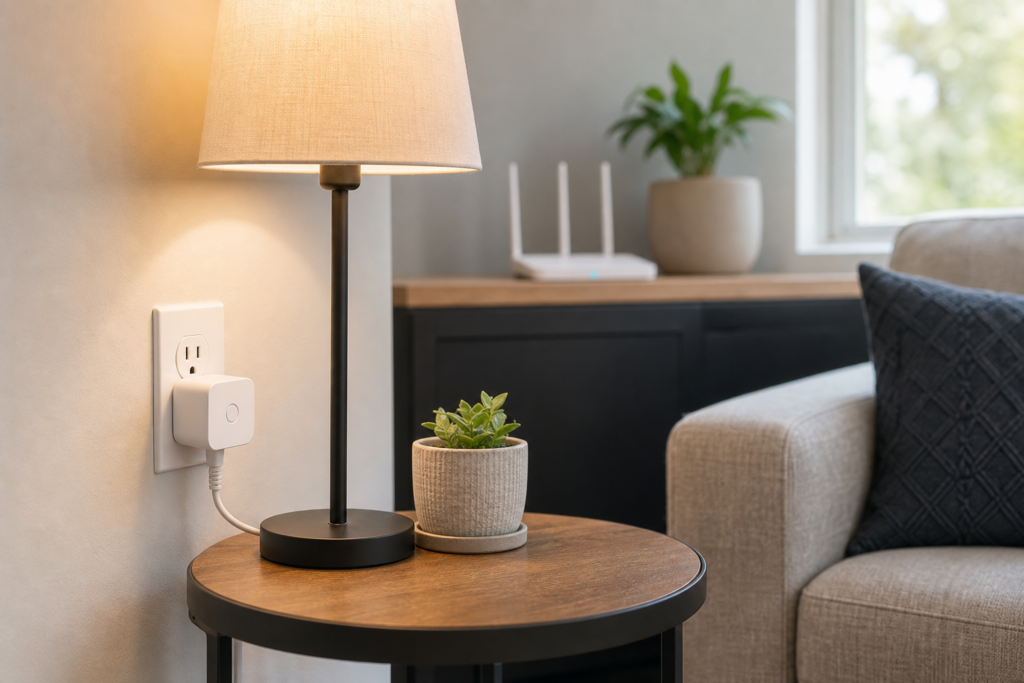
A smart plug that refuses to connect is usually dealing with a small setup mismatch rather than a defective outlet. The most common causes are a phone using the wrong Wi-Fi band, an incomplete pairing reset, weak signal at the outlet, missing app permissions, or a router setting that the plug does not support.
Start close to the router, confirm that your phone is connected to the home network you want the plug to use, and put the plug into pairing mode again. Most smart plugs support 2.4 GHz Wi-Fi because it travels farther and uses less power than 5 GHz. If your router combines both bands under one name, the plug may still connect, but setup can occasionally need extra attention.
Work through the checks below in order. Change one thing at a time and retry, because changing the app, router, plug, and phone simultaneously makes it difficult to identify the real cause. Never open the plug housing or attempt electrical repairs; replacement is the safer choice if the device is damaged, unusually hot, or smells burned.
Begin With the Three Fastest Checks
Place the smart plug in an indoor wall outlet within a few feet of the router for initial setup. Avoid a power strip, extension cord, surge protector, or outlet hidden behind a large appliance. Confirm that the plug’s indicator is blinking in the pattern described by its instructions; a steady light often means it is powered but not ready to pair.
On your phone, temporarily turn off cellular data and any VPN, then verify that Wi-Fi is active. Open the manufacturer’s current app, sign in to the intended account, and choose the exact plug model if the app asks. Enter the Wi-Fi password carefully; capitalization and punctuation matter.
- Use a standard indoor wall outlet for setup.
- Keep the phone, plug, and router in the same room.
- Confirm that Bluetooth and local-network access are allowed when requested.
- Do not use a guest network that isolates connected devices.
Make Sure the Plug Is in Pairing Mode
A new plug may enter pairing mode automatically, while a previously used plug usually needs a reset. The process commonly involves holding its button until the status light flashes, but the time and light pattern vary. Follow the model’s instructions instead of guessing, and release the button as soon as the correct pattern appears.
If the plug was connected to another home, account, or router, remove it from the old app account when possible and factory-reset it. Simply unplugging it is not the same as clearing saved network information. After resetting, close and reopen the app before starting a fresh device setup.
Check the 2.4 GHz Wi-Fi Requirement
Many smart plugs cannot join a 5 GHz-only network. Look at the plug specifications or setup guide for supported bands. If your router shows separate names, connect the phone to the 2.4 GHz name during setup. If both bands share one name, first try normally; modern routers often steer devices correctly.
If pairing repeatedly fails on a combined network, use the router’s official app or settings to enable a temporary 2.4 GHz-only onboarding mode, if one exists. Another option is temporarily moving far enough from the router that the phone favors 2.4 GHz. Do not permanently weaken your network security or disable useful features unless the device maker specifically documents the change.
Review Router Compatibility and Security
A 2.4 GHz network can still reject a plug because of its security mode or access rules. Older low-power devices may not support WPA3-only security, while a mixed WPA2/WPA3 mode may work. Hidden network names, MAC filtering, client isolation, and a device limit can also interrupt onboarding.
Check whether the router has installed updates and restart it normally if other devices have also become unreliable. Avoid factory-resetting the router as an early troubleshooting step because that disconnects everything in the home. If you change a setting, record its original value and restore it if it does not solve the problem.
- Use a visible network name during initial setup.
- Avoid unsupported WPA3-only mode when the plug requires WPA2.
- Check parental controls or paused-device lists.
- Confirm that the router has available DHCP addresses.
Give the App the Permissions It Needs
Smart-home apps may use Bluetooth to discover the nearby plug and local-network access to complete setup. Location permission can also be required by some phone operating systems when scanning for nearby Wi-Fi devices. Denying a prompt does not always produce a clear error message.
Open the phone’s settings, find the smart-plug app, and allow the permissions described by the manufacturer. Update both the app and phone operating system, then restart the phone. If the app was restored from an old phone backup, signing out and reinstalling it can clear corrupted setup data, but make sure you know the account password first.
Test Signal Strength and Final Placement
Once the plug connects beside the router, move it to the outlet where you plan to use it. A metal appliance, masonry wall, utility cabinet, aquarium, or distant floor can weaken 2.4 GHz service. If the plug goes offline only in its final location, the issue is coverage rather than pairing.
Try a nearby outlet with fewer obstructions. A properly placed mesh node or Wi-Fi access point can improve coverage, but adding equipment should come after confirming the pattern. Do not crowd the plug behind furniture, and follow its clearance, indoor-use, grounding, and maximum-load requirements.
When the Plug Connects but Appears Offline
An offline message can result from a brief internet outage, router reboot, changed network password, or cloud-service interruption. Confirm that other devices have internet access, power-cycle the plug once, and refresh the app. If you recently changed the network name or password, reset and add the plug again.
For automations, also check the plug’s time zone, home assignment, firmware status, and integration permissions. Test basic on-and-off control in the manufacturer’s app before troubleshooting a voice assistant. This separates a plug connection problem from an Alexa, Google Home, or automation-platform linking problem.
Signs the Smart Plug May Be Faulty
Stop using the plug if the casing is cracked, contacts are bent, it becomes abnormally hot, produces buzzing or arcing, or has a burned odor. A device that never powers on in multiple known-good outlets may also have failed. Do not dismantle it.
If every setup requirement is correct but the plug cannot enter pairing mode or cannot be discovered by two compatible phones, contact the manufacturer or retailer. Keep the model number, indicator-light behavior, router type, and troubleshooting steps handy. That information makes support faster and helps determine whether replacement is appropriate.
Frequently Asked Questions
Why does my smart plug require 2.4 GHz Wi-Fi?
The 2.4 GHz band generally provides longer range and better wall penetration while requiring less complex hardware. Many small smart-home devices therefore support it instead of 5 GHz.
Can I switch my phone back to 5 GHz after setup?
Usually yes. Once the plug is connected to 2.4 GHz, a phone on 5 GHz can normally control it because both bands belong to the same local network. Guest-network isolation can prevent this.
Will unplugging a smart plug reset it?
Normally no. A factory reset usually requires holding a physical button for a model-specific period. Check the instructions before resetting.
Why does pairing stop near the end?
A wrong password, unsupported security mode, blocked local-network permission, weak signal, or cloud-service problem can cause a late failure. Retry near the router after checking those items.
Final Thoughts
Most smart-plug connection failures are solved by returning to pairing mode, using a compatible 2.4 GHz network, granting the app’s requested permissions, and completing setup close to the router. Once it works there, test the intended outlet to distinguish setup trouble from weak coverage.
Keep security settings as strong as the plug supports, install firmware updates, and replace any unit that shows physical or electrical damage. A careful, one-change-at-a-time approach is faster and safer than repeatedly resetting the entire home network.
Leave a Reply