Why Does My Smart Thermostat Keep Going Offline?
Learn why a smart thermostat keeps going offline and how to check Wi-Fi signal, power, router settings, app status, and installation safely.
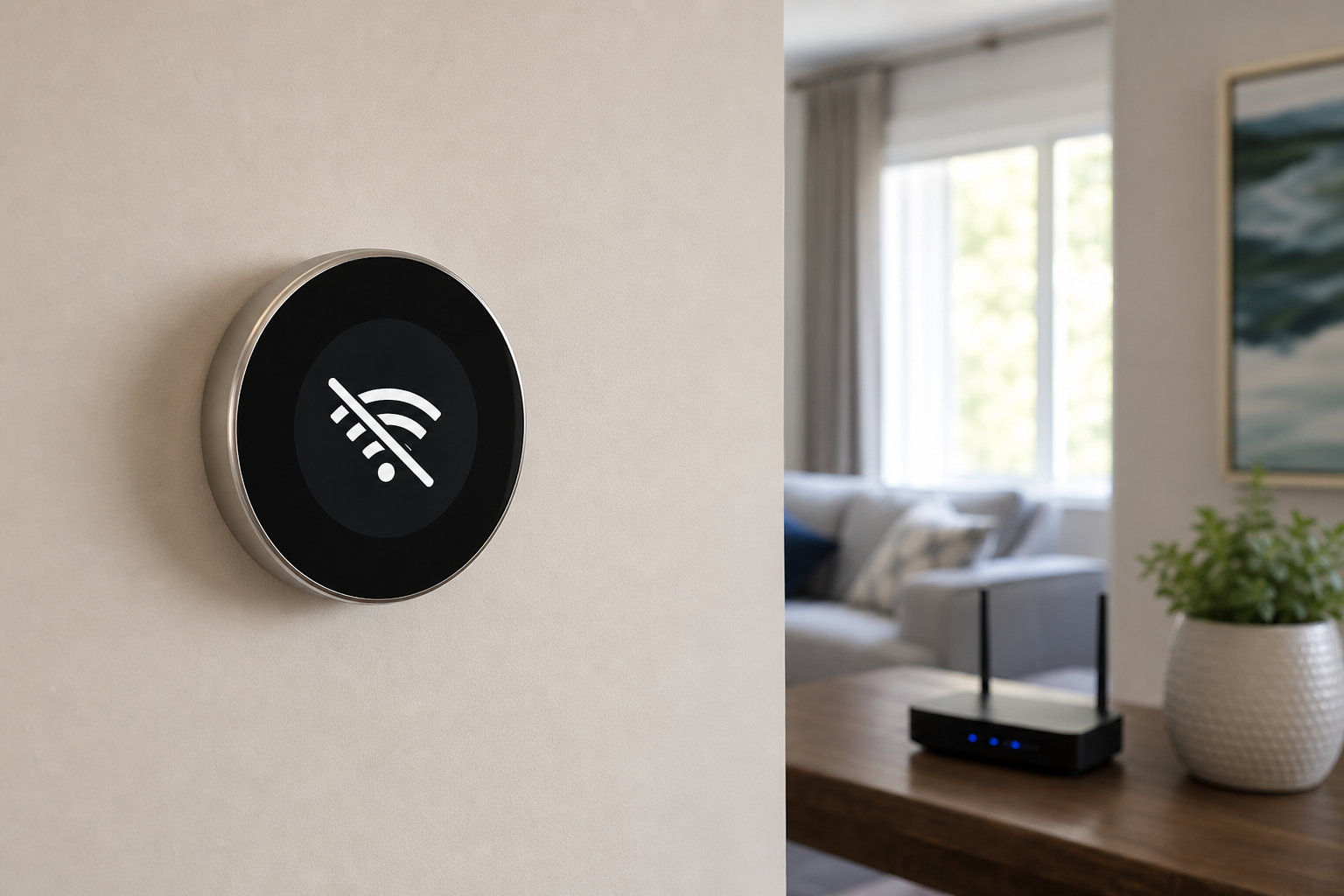
A smart thermostat that repeatedly goes offline usually has an unstable Wi-Fi connection, insufficient power, a router compatibility issue, outdated software, or a temporary cloud-service problem. The heating and cooling system may continue following its local schedule, but remote control, alerts, and voice-assistant features can stop until the connection returns.
Begin by checking whether the thermostat itself has power and whether other devices can reach the internet. Then examine signal strength at the wall, restart the affected devices in a controlled order, and review the thermostat app for a service notice or specific error. Avoid removing wires or opening HVAC equipment during basic network troubleshooting.
Intermittent failures are easier to diagnose when you note when they happen. A thermostat that disconnects only when the furnace starts suggests a different cause from one that drops every night during a router reboot. The steps below help separate Wi-Fi, power, app, and equipment problems.
Confirm What “Offline” Actually Means
Look at the thermostat display before relying on the phone app. If the screen is responsive and the system can be adjusted locally, the thermostat may have lost only its network or cloud connection. If the screen is blank or restarting, investigate power rather than Wi-Fi first.
Check the manufacturer’s service-status page or support channel when several users are reporting problems. A cloud outage cannot be repaired from your home. During an outage, do not repeatedly reset a working thermostat or change HVAC wiring.
- Responsive screen but offline app: focus on network or cloud service.
- Blank screen: check permitted power and breaker basics.
- Repeated startup logo: possible power or firmware issue.
- Only voice control fails: check the third-party integration after the main app.
Check Wi-Fi Signal at the Thermostat
Thermostats are fixed to a wall, often near ductwork, wiring, mirrors, or dense construction that can weaken radio signals. Open the thermostat’s network information screen if available and review its signal indicator. Compare it with a phone at the same location, while remembering that a phone may have a stronger antenna.
If the connection improves when a mesh node or router is temporarily moved closer, coverage is likely the cause. Place network equipment in the open and at a useful height, not inside a metal cabinet. Avoid positioning a mesh node so close that devices switch between nodes unnecessarily.
Verify the Correct Wi-Fi Band and Security Mode
Some smart thermostats support only 2.4 GHz Wi-Fi, while newer models may also support 5 GHz. Confirm the exact model’s specifications. A combined network name often works, but band steering can occasionally make initial setup or reconnection unreliable.
WPA3-only security, hidden network names, guest isolation, MAC filtering, or a paused-device rule can block some thermostats. Prefer the strongest security mode the thermostat officially supports. Record router settings before changing them and avoid disabling security as a permanent workaround.
Restart in a Controlled Order
If internet access is working elsewhere, use the thermostat’s documented restart command rather than immediately performing a factory reset. Restart the router only if multiple devices are affected or normal network checks point to it. Allow each device to finish booting before judging the result.
A factory reset erases schedules, equipment settings, and account associations, so reserve it for the manufacturer’s final troubleshooting steps. Incorrect equipment configuration after a reset can affect comfort or system operation. Save schedule and wiring information before any approved reset.
Look for a Thermostat Power Problem
Wi-Fi radios draw power, and an inadequate or inconsistent supply can make a thermostat disconnect or reboot. Models using a C-wire generally receive continuous low-voltage power, while some installations rely on batteries, a power connector, or power-stealing behavior. The acceptable arrangement is model- and HVAC-specific.
Replace user-serviceable batteries when the app or display reports low power. Check that the HVAC service switch and breaker are on, but do not touch exposed conductors. If the thermostat reports low input voltage, frequently restarts when heating or cooling begins, or shows equipment errors, contact the manufacturer or a qualified HVAC professional.
Update the App, Firmware, and Account
Install the current thermostat app and phone operating-system updates. Sign in to the correct home and account, confirm local-network permissions, and refresh the device list. If remote control fails only on one phone, the problem is more likely the app or that phone than the thermostat.
Thermostat firmware often updates automatically when a stable connection is available. Do not interrupt a documented update. If the device is stuck on an old version, support can confirm eligibility and rollout status without risky manual files.
Check Router Features That Cause Periodic Drops
Scheduled router reboots, eco modes, automatic channel changes, parental controls, and short DHCP leases can create predictable offline periods. Review router logs or device history if available. A duplicate IP address or exhausted address pool can also prevent reconnection.
Reserve an IP address only if the router and thermostat support that approach and the manufacturer recommends it. First update the router, make sure its date and time are correct, and confirm that the thermostat is not listed as blocked or paused.
Test Automations Only After the Main Connection Works
Voice assistants, energy programs, utility integrations, and home-automation platforms add another connection layer. First confirm that the thermostat remains online and responds normally in its own manufacturer app. Then reconnect one external service at a time.
If only an automation fails, review its home assignment, permissions, trigger conditions, and time zone. Removing the thermostat from every service at once can create duplicate devices and makes the original network issue harder to identify.
When to Call for Help
Contact thermostat support when Wi-Fi signal is strong, compatible settings are confirmed, and the device still disconnects. Provide the model, software version, signal reading, router model, error code, and approximate failure times. These details help support distinguish hardware, firmware, and service issues.
Call an HVAC professional when the screen loses power, breakers trip, the system short-cycles, wiring appears damaged, or disconnections coincide with equipment startup. Stop using any device that is hot, smells burned, or shows physical damage.
Frequently Asked Questions
Will my HVAC system stop if the smart thermostat goes offline?
Many thermostats continue local temperature control and stored schedules without internet, but remote features stop. Behavior varies, so check the model documentation.
Does a smart thermostat need 2.4 GHz Wi-Fi?
Many models use 2.4 GHz, while others support both common bands. Confirm the exact model rather than assuming.
Should I factory-reset an offline thermostat?
Not as a first step. A reset can erase schedules and HVAC configuration. Try signal, power, app, and normal restart checks first.
Can a weak C-wire cause Wi-Fi disconnections?
An inadequate power supply can cause restarts or radio instability. Because HVAC wiring is equipment-specific, persistent power warnings should be assessed by support or a qualified technician.
Final Thoughts
Treat an offline smart thermostat as a four-part check: determine whether the display has power, test signal at the wall, confirm router compatibility, and rule out an app or cloud outage. A simple network issue should not require changing HVAC wiring.
If the problem follows heating or cooling cycles, includes restarts, or produces electrical symptoms, stop at safe user checks and get professional help. Good notes about timing and error messages will make the repair faster.
 ✓
✓